Datasources View
The datasource page shows everything about one datasource: its tags, channels, flow runs and audit events in a details panel at the top, and its timeseries in a chart and a table below.
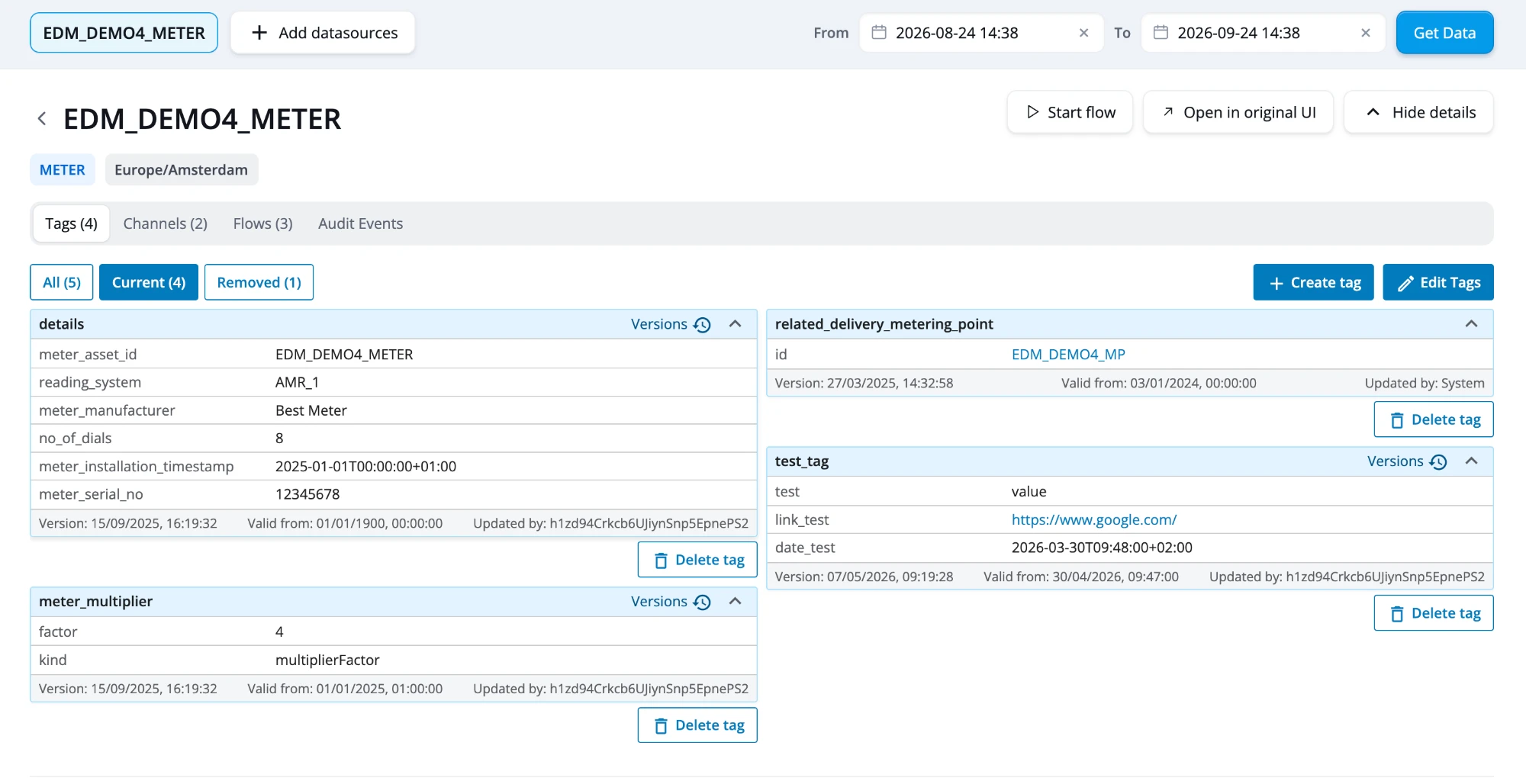
Toolbar
- Datasource chips (top left): the datasources loaded on the page. Click [Add datasources] to load more datasources next to this one. The chart and table then combine all of them, and the details panel shows the datasource whose chip you click. Remove a datasource with the × on its chip. Editing data is not possible while more than one datasource is loaded.
- From / To and [Get Data]: the time range of the chart and table. The range defaults to your Default range start and Default range end settings, or to the last month if you have not set them.
- [Start flow]: runs a flow on the loaded datasources. See Starting a flow.
- [Hide details] / [Show details]: collapses or expands the details panel.
Under the datasource name, the chips show the datasource classifier and the timezone.
Details panel
The details panel has a tab for each part of the datasource: Tags, Channels, Flows and Audit Events. Virtual datasources also have a Linked Datasources tab and show their filter.
Tags
Each tag is shown as a card with its properties. The footer shows the tag's version, the date it is valid from, and who last updated it.
- All / Current / Removed: filter the tags. Current tags are valid now; removed tags have been deleted. A Future filter appears when a tag has a Valid From date in the future.
- [Versions]: appears when a tag has more than one version. It opens a timeline of all versions, which you can sort by version or by Valid From date.
- A property of type Datasource ID is shown as a link that opens that datasource. Right-click it and choose Open side by side to load it next to the current one. A property of type Link opens the web address in a new tab.
Below the tags, Channel properties lists tags whose name matches a channel classifier on the datasource.
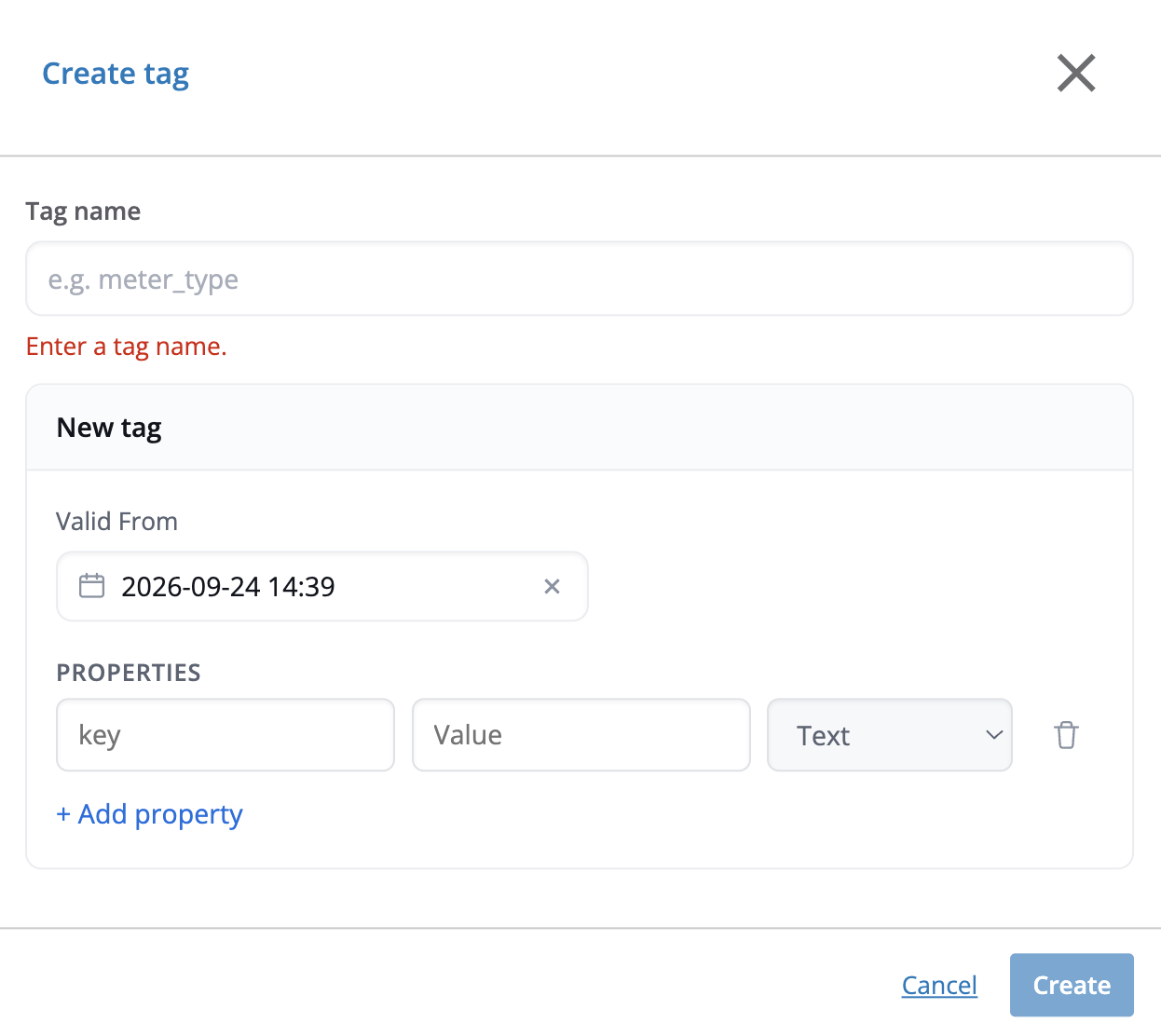
Creating a tag
- Click [Create tag].
- Enter a Tag name. Names may contain lowercase letters, numbers, dashes, underscores and dots, and must not already exist on the datasource.
- Set Valid From. It defaults to now, and can be in the past.
- Add the properties: enter a key and a value, and pick a type (Text, Number, Boolean, Date, Timestamp, Link or Datasource ID). Click + Add property for each extra property.
- Click [Create].
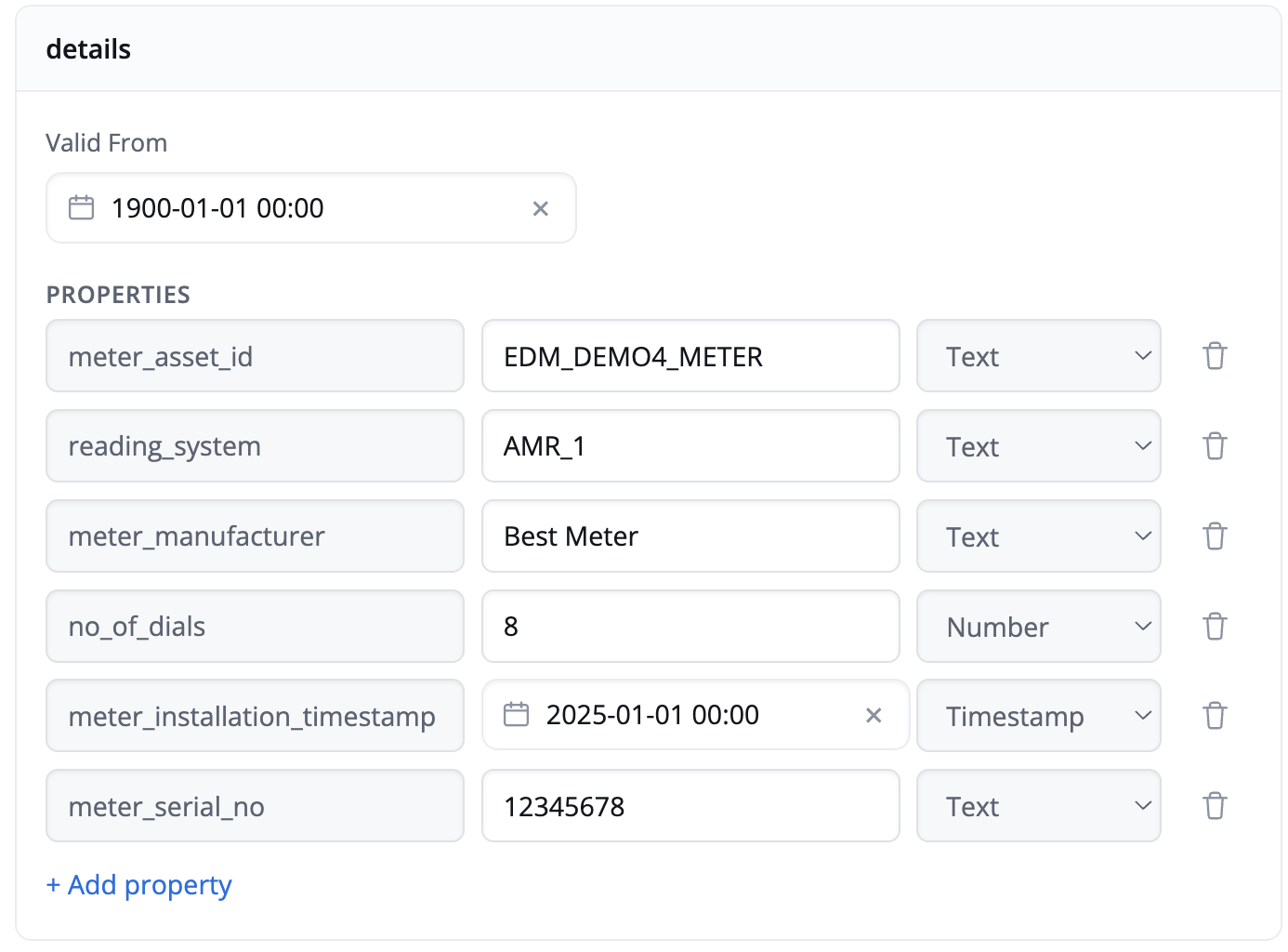
Editing tags
- Click [Edit Tags]. Every tag in the current filter becomes editable.
- Change the Valid From date or the property values, add properties with + Add property, or remove them with the bin icon. The key and type of an existing property cannot be changed.
- Click [Update Tags] to save, or [Cancel] to discard your changes.
If the only change to a tag is a later Valid From date, that change is ignored and you are asked whether to save your other changes.
Deleting a tag
Click [Delete tag] on the tag and confirm. The tag is not erased: it gets a new version marked as removed, and moves to the Removed filter.
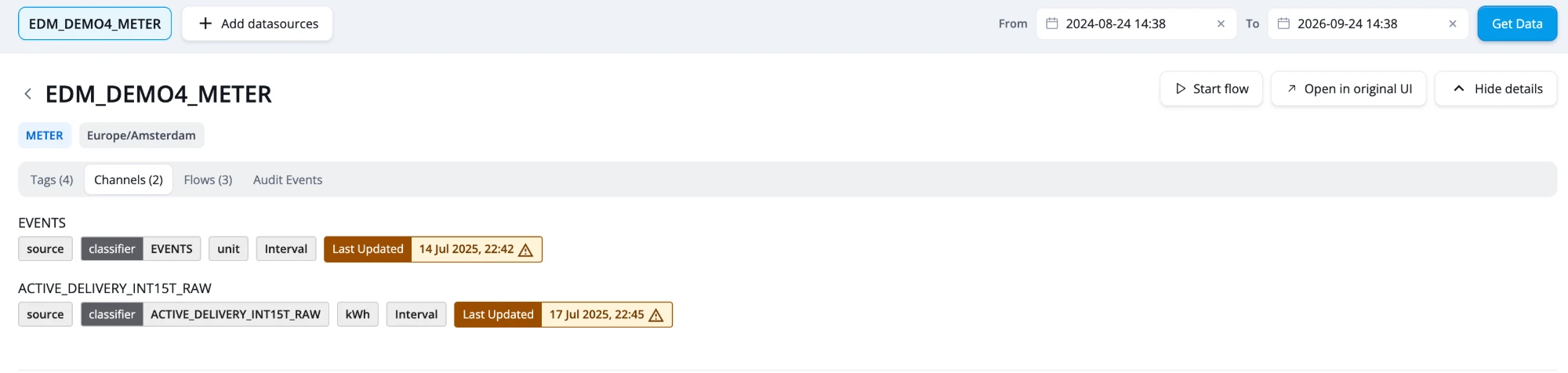
Channels
The Channels tab lists the datasource's channels. For each channel it shows whether it is a source channel, its channel classifier, unit and datapoint type, and when it was last updated. A warning icon marks channels whose latest data is more than 24 hours old.
Flows
The Flows tab has a row for each flow design that has run on the datasource, with the status and time of its latest run. Expand a row to see the Flow Run ID, the Flow Type (continuous or scenario), the Destination Channel and a link to the Flow Design.
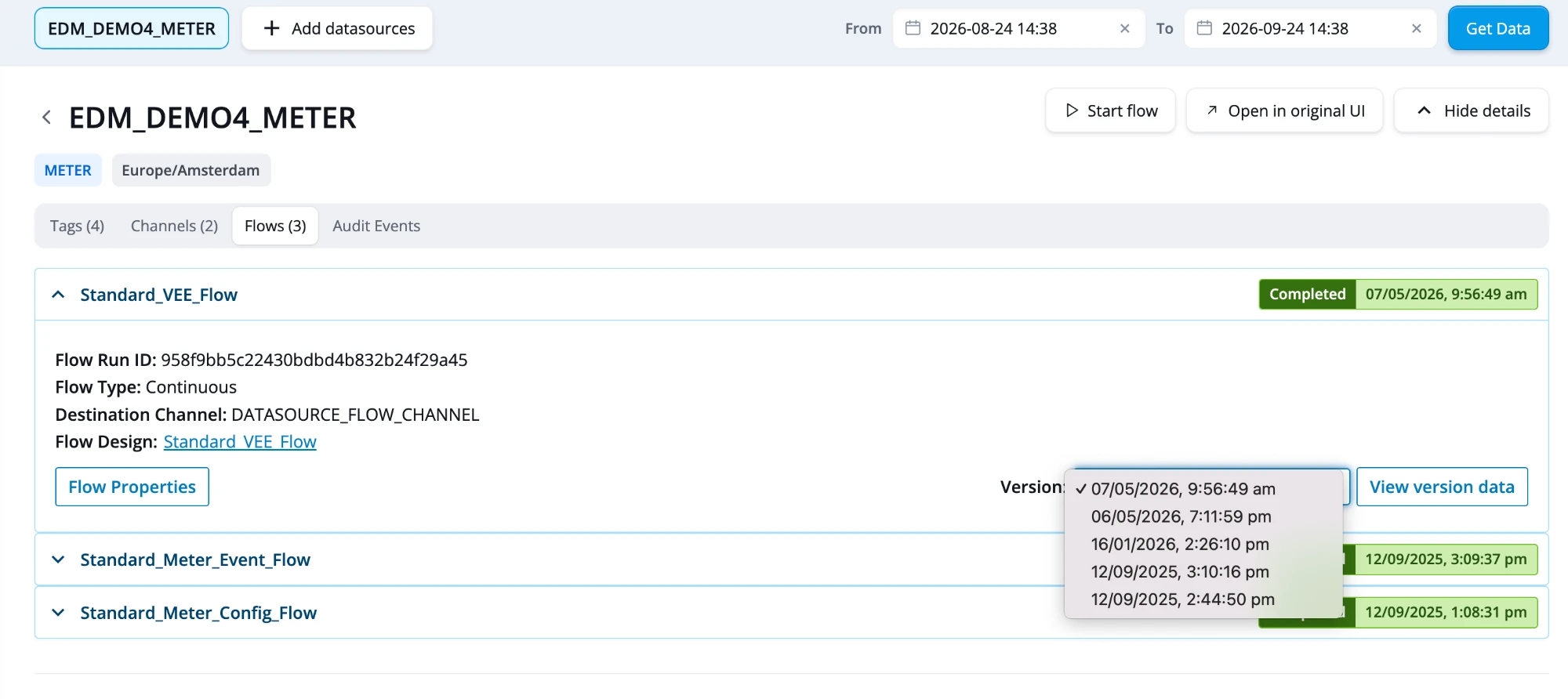
- [Flow Properties]: shows the properties the run was started with.
- Version: lists every run of this flow design. Selecting a run updates the details above.
- [View version data]: shows the data that run produced in the chart and the table. A banner says which version you are looking at; click Reset to latest to go back. Data cannot be edited while you are viewing a flow version.
Starting a flow
- Click [Start flow] in the toolbar.
- Select a Flow design.
- Set the From and To of the period to run it on, or pick Last week, Last month or Last year.
- Click [Start flow] and then [Confirm start].
The flow runs on every datasource loaded on the page.
Audit Events
Audit events contain both system events, which give information about the platform status, and compliance and security messages, which form an audit trail of user actions in the platform.
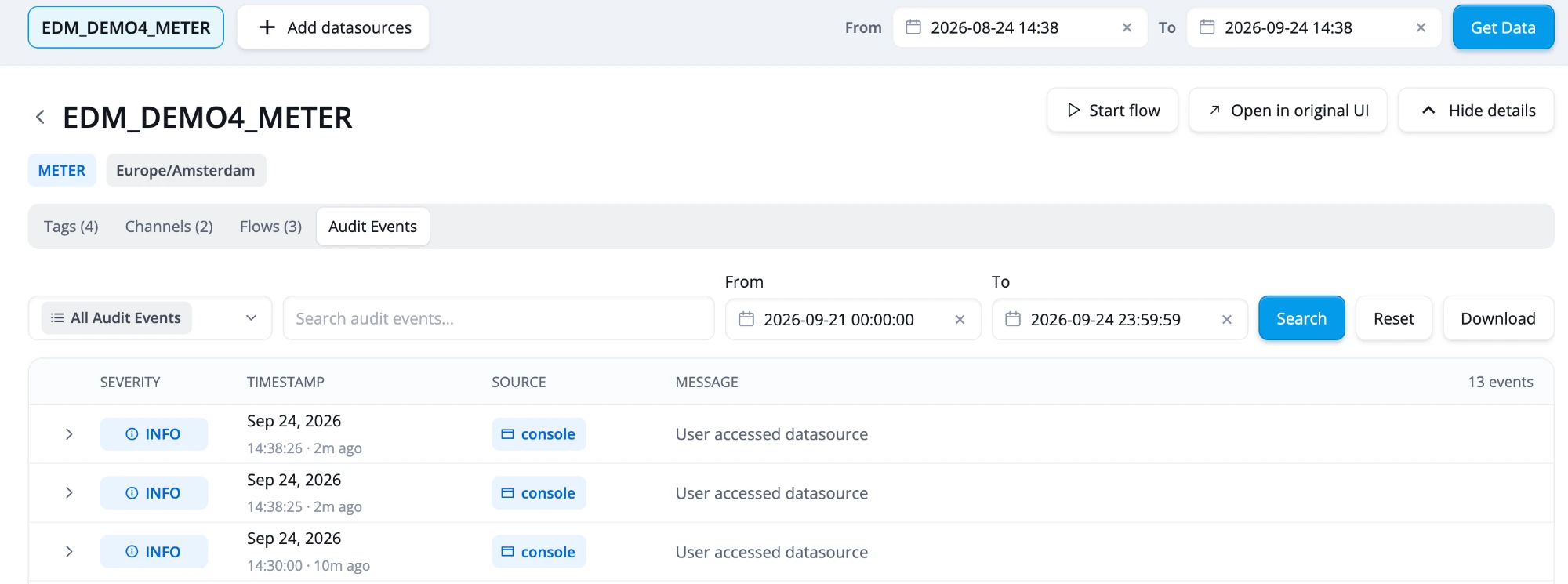
- Use the dropdown to show only one severity (Error, Warning, Info or Debug), and the search field to find events by text.
- From and To default to the start of yesterday until the end of today. You can change how many days back it starts in your settings. Click [Search] to apply your filters and [Reset] to go back to the defaults.
- [Download] saves the events that match your filters as a CSV file.
- Click the arrow in front of an event to expand it. It shows the event's details, the subjects it concerns (with links to datasources and market adapters) and its properties.
Chart
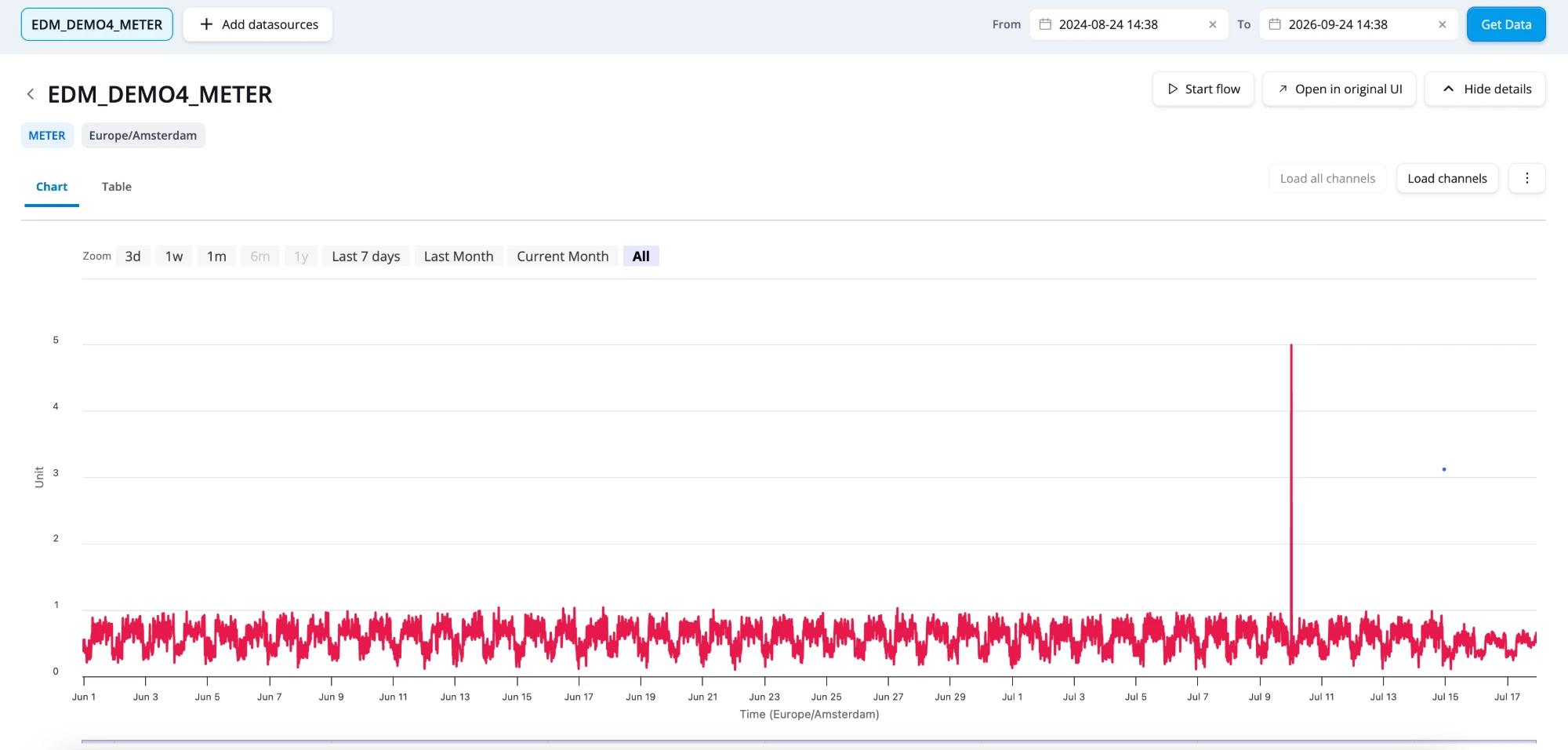
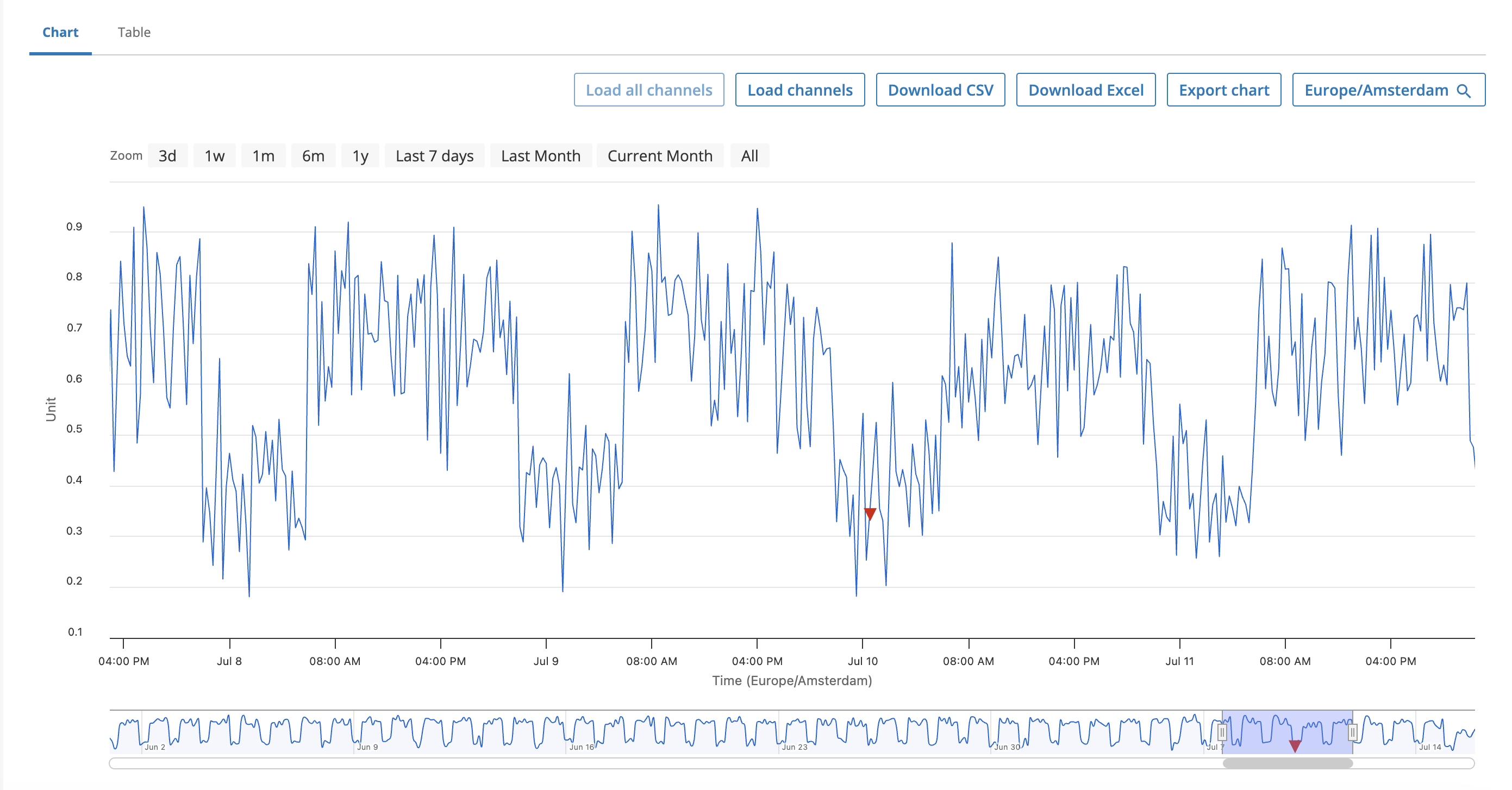
The Chart tab shows the datasource's timeseries. The Table tab shows the same data as a table. Datasources whose classifier has dashboards also get a Dashboards tab.
In the new console, the chart legend, the chart tooltip, the channel list and the datapoint table all label a channel the same way: by its per-datasource channel name if it has one, otherwise by the channel classifier's display name, otherwise by its technical name. The old console does not apply this consistently — its chart tooltip shows the technical name even where the legend shows the display name. See Channel naming for the full picture and for how to see a channel's technical name in the table.
- Zoom: use the zoom buttons or drag across the chart.
- [Load channels]: choose which channels to show. The list contains all channels of the datasource, including source channels. The console remembers your choice for datasources of the same classifier. [Load all channels] shows every channel.
- ⋮ (More actions): Download CSV, Download Excel, Export chart (as a PNG image), and Timezone, which shows the chart and table in another timezone.
- Legend: click a channel to hide or show it. [Show all] and [Hide all] toggle every channel, and the filter narrows the list. Click the coloured square in front of a channel to change its colour. A channel's annotations are listed under it; see Annotations.
Editing datapoints
- Click [Edit Data].
- Make your changes:
- On the chart: click a datapoint, enter the New timeseries value and change its attributes if needed, then click [Apply].
- In the table: edit the cells directly. You can edit values, attributes and the properties of existing annotations.
- [Bulk Edit Annotations]: set one annotation property to a new value on several channels over a time range at once.
- Click [Review Changes] to see every change with its value before and after. Remove any you do not want with [Discard].
- Enter an Edit reason and click [Save].
To leave without saving, click [Exit Edit Mode] and confirm.
Keep in mind:
- Source channels cannot be edited.
- Only attributes that the channel classifier marks as editable can be changed.
- Saving does not start any flows. Use [Start flow] if the data needs to be processed again.
- Editing is not available while more than one datasource is loaded or while you are viewing a flow version.
Live Flags
Live flags are only available in the new console.
Live flags can be used to visualize Datapoint Attributes (DPA) values in the front end. For instance, if you would like to see all estimated values in a validated channel. The following steps are needed to set up a live flag:
-
Go to [Live Flags] under the
Smart Integrationtab in the menu -
Click [Add flag]
-
Fill in the technical name and display name (the description field is optional).
-
Click [Add condition] to define when the flag should trigger:
- Channel Classifier: Select the relevant classifier from the dropdown.
- Property: Choose the specific DPA property to monitor.
- Comparison: Select your operator (e.g., >, <, or =).
- Value: Enter a manual value or select one from the provided dropdown menu.
Supported condition types
A condition can be based on a plain value or on a DPA. However, not all DPA types are supported. The following DPA types can be used in conditions:
DPA type Supported in conditions Enum (Predefined value / Symbol) Yes Float Yes Long (integer) Yes Timestamp No — not implemented Boolean No — not implemented If a DPA of type Timestamp or Boolean is selected as a condition property, it will not behave as expected. These types were never implemented for condition evaluation in live flags. Use only Enum, Float, or Long DPA types for conditions.
Note: You can repeat Step 4 to layer multiple conditions for complex logic
-
Add a target channel to which the condition will cause visualizations to show up for
-
Choose the flag type, this will define how the points are visualized in the front end
-
Click [Save]
In the example above, where we want to visualise estimated values, this is what the conditions look like
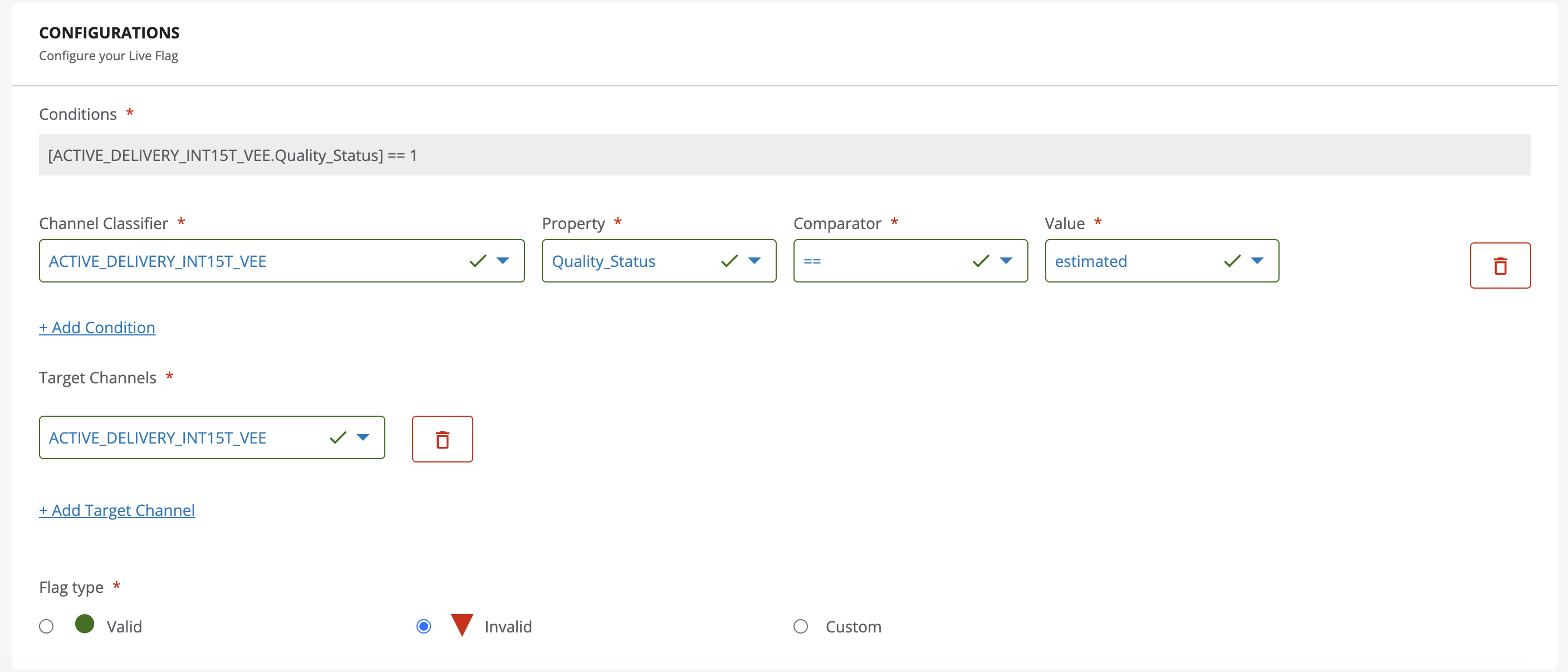
Once these configurations are set up, the flags are shown on the chart while [Show flags] is
selected at the top of the legend. Click [Hide flags] to hide them. Switching between the two
reloads the chart data. Showing flags requires the read permission on computedflag.
This is what the vizualization looks like:
Can't find a channel?
If a channel you loaded is not visible on the chart, it has no data (yet) in the selected time range. Channels on your Blacklisted channels list in your settings are never shown.
Saving a channel selection
The combination of channels you have made visible in the legend — including their colours — can be saved as a named preset and reapplied in one click on any datasource. See Chart Presets.
Default visible channels
Default visible channels are always loaded on the chart when you open a datasource. This is useful when datasources have many channels and showing them all at once makes the chart hard to read.
To set your own default visible channels:
- Open your Settings and go to the Datasource tab.
- In Visible channels, add the channel classifiers you want to see by default.
- Save your settings.
Namespace administrators can set default visible channels for every user of the namespace in the Namespace column of the same row. Your own setting takes precedence over the namespace setting.
When you open a datasource, the chart shows its default visible channels together with the channels you last loaded on datasources of the same classifier. If there are none of either, it shows all channels.
Table
The Table tab shows all timeseries data in the selected time range, one row per datapoint, with columns for the timestamp, value, unit, channel, version, last edit, flags, attributes and annotations.
- Use the search field to filter the rows.
- Drag a column header to the bar above the table to group the rows by that column.
- Open the side panel to choose columns and set filters.
- [Download CSV] and [Download Excel] export the table.