Chart Presets
A preset is a named snapshot of the datasource chart legend: which channels are visible, and the colour each of them has. Once saved, applying a preset shows exactly those channels — hiding everything else — and restores their colours.
Presets are useful when a datasource carries many channels and you keep coming back to the same handful of them. Instead of hiding channels one by one on every visit, you save the combination once and reapply it in a single click.
Presets are only available in the new console.
Where to find presets
-
Open a datasource and scroll to the Chart section.
-
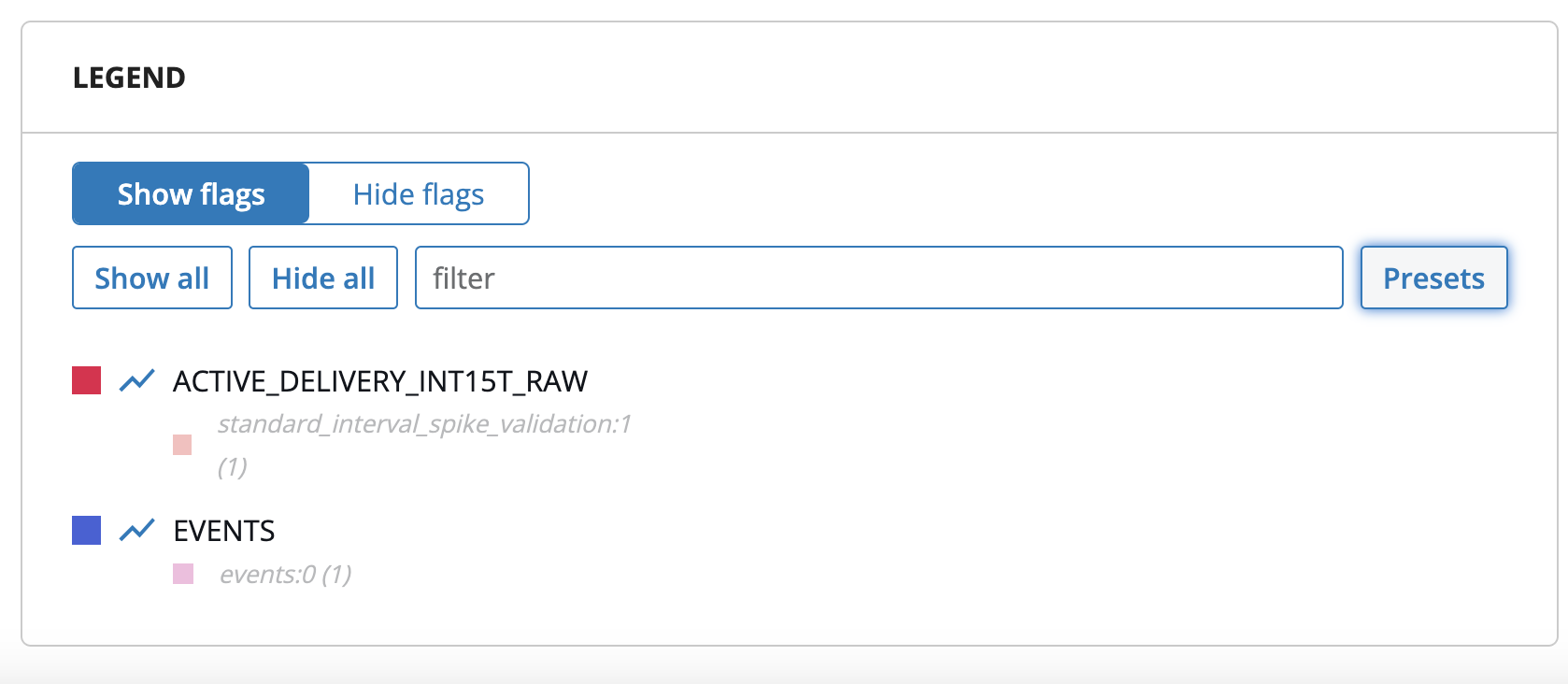
In the Legend card, click [Presets] in the row of filter buttons (next to [Show all], [Hide all] and the filter field).
-
The Colour presets panel opens above the channel list. Click [Close] on the same button to collapse it again.
Preparing the chart
A preset stores whatever the chart looks like at the moment you save it, so set the chart up first:
- Click a channel name in the legend to hide or show it. [Show all] and [Hide all] toggle every channel at once, and the filter field narrows the list by name.
- Click the coloured square in front of a channel to open the colour picker and give that channel a different colour.
Only channels that are visible when you save become part of the preset.
Saving a preset
- Open the Colour presets panel.
- Click [New preset].
- Type a name and click [Save] (or press Enter).
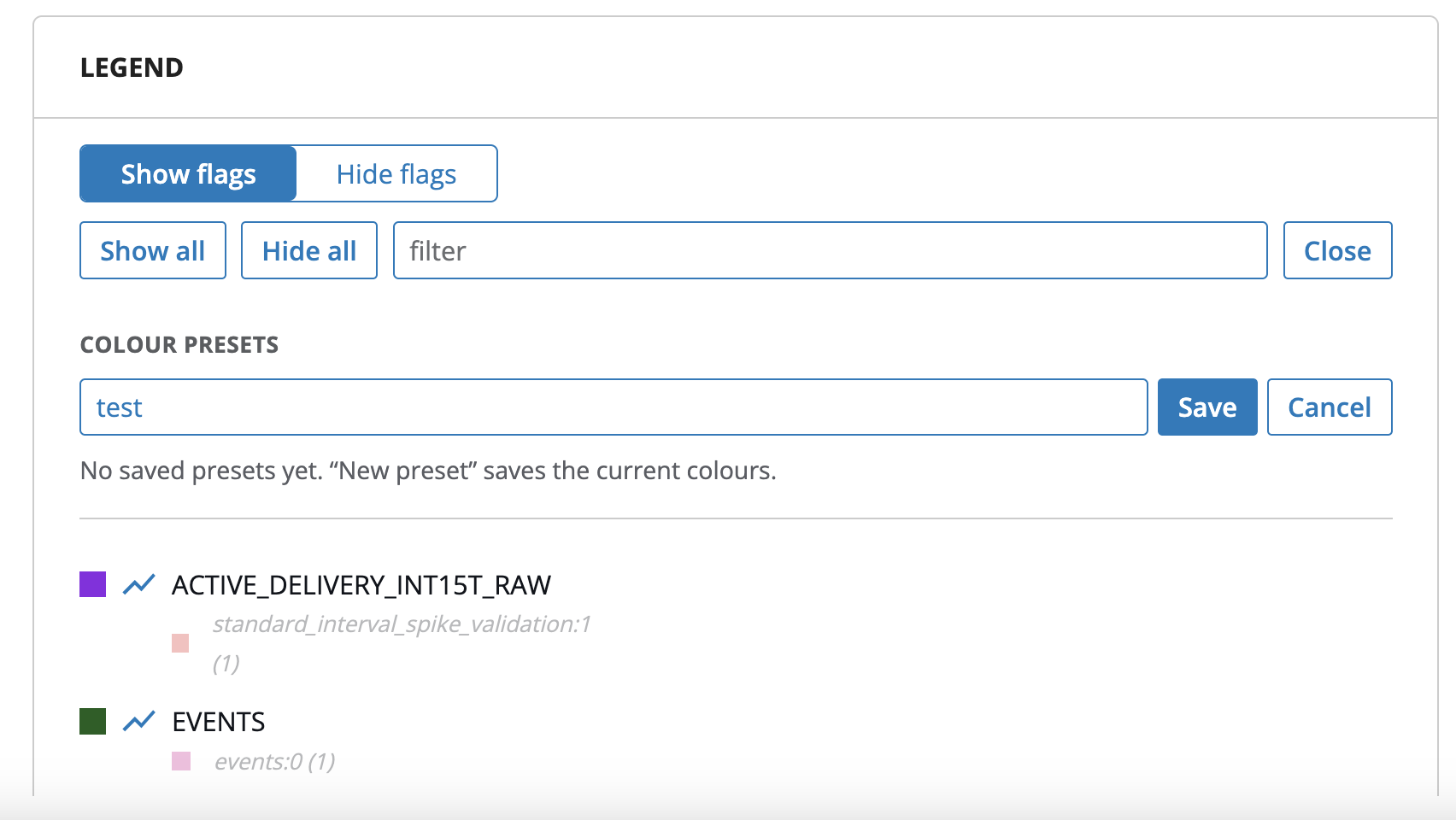
The new preset appears in the list and becomes the active one, marked with a dot in front of its name. Preset names must be unique — the [Save] button stays disabled while the name is empty or already in use.
Applying a preset
Click the preset name. The chart then:
- shows only the channels stored in the preset and hides all others;
- applies the colour each of those channels had when the preset was saved;
- resets the zoom so the chart fits the newly visible data instead of keeping the previous timeframe.
Clicking the active preset a second time unloads it: the dot disappears and all channels become visible again. To switch between presets, simply click another name in the list.
A preset lists channels by name, so it can only show channels that actually exist on the datasource you are looking at. Names in the preset that the datasource does not have are skipped.
Updating a preset
While a preset is active, change the chart as you like — hide or show channels, or pick different colours. As soon as the chart differs from what the preset stored, a [Save] button appears on that preset's row. Click it to overwrite the preset with the current selection.
Presets are never updated implicitly: if you navigate away without clicking [Save], the preset keeps its original channels and colours.
Deleting a preset
Click the bin icon on the preset's row. The preset is removed immediately — there is no confirmation step. Deleting the active preset only clears the selection; the channels currently on the chart stay as they are.
Good to know
- Presets are stored in your browser. They live in the local storage of the browser you created them in, which means they are not tied to your Energyworx account: they are not shared with colleagues, they do not follow you to another computer or browser, and clearing your browser data removes them.
- Presets are not bound to one datasource. The same list is offered on every datasource, so a preset built around common channel names can be reused across datasources.
- Annotations and flag overlays are left untouched. Applying a preset changes the channel series only. Datapoint attribute flags remain governed by the Show flags / Hide flags switch at the top of the legend.
- The line/bar setting is not part of a preset. Switching a channel between a line and a bar series is not stored, so applying a preset does not change it.
Presets or default visible channels?
Both features limit which channels the chart shows, but they solve different problems:
| Chart presets | Default visible channels | |
|---|---|---|
| Applies | When you click the preset | Automatically, when a datasource opens |
| Stores colours | Yes | No |
| Number of combinations | As many presets as you like | One set |
| Stored in | Your browser | User settings or namespace properties |
| Scope | Only you, only that browser | Your user, or every user in the namespace |
Use default visible channels for the set you want to see every time you open a datasource, and presets for the alternative combinations you switch to while investigating.