Datasource Classifier
Our platform is based on working with datasources, which are used for reaching various data driven purposes. In reality, there are numerous different types of datasources available, which can be classified differently depending on what they actually measure. For both the physical and aggregated datasources, there are available classifiers like power, gas, water, temperature, time, etc. A datasource classifier:
- Helps organise datasource into groups.
- Can have many datasources associated with it but a datasource can only belong to one datasource classifier
How to create datasource classifiers
When you need to create a new Datasource Classifier, see example below, you can easily do so by taking the following steps:
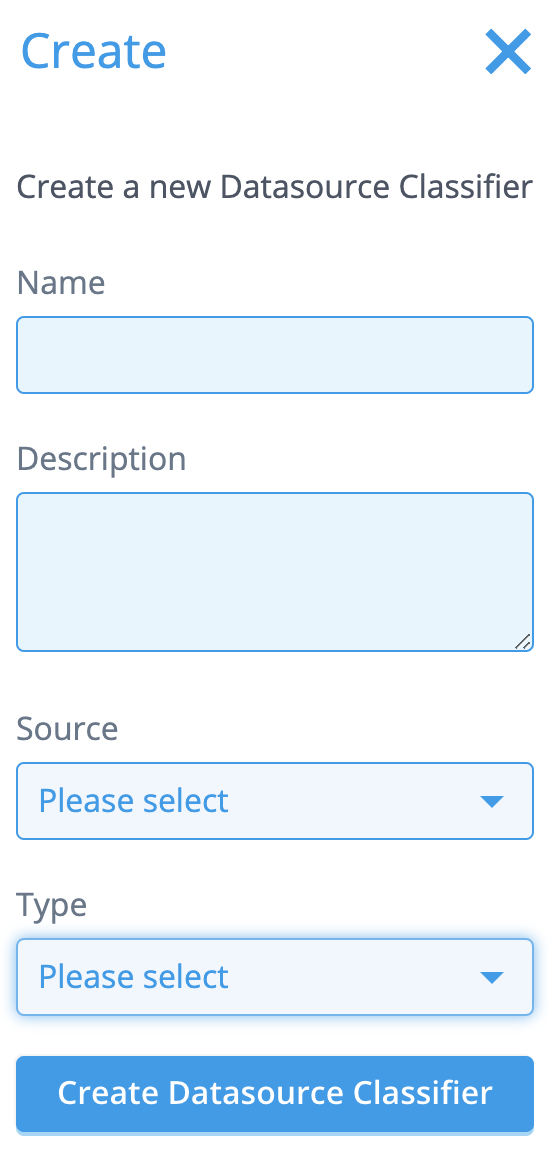
Go to [Smart Integration → Datasource Classifiers] and click the Create button on top of the screen.
Fill in the name and the description of the classifier.
Select a Source (physical or virtual). [Note: Physical reflects an individual meter, sensor or market profile. Virtual reflects an aggregated group of physical datasources.]
Select a Type (power, gas, water, temperature, time, etc.).
Optionally, add one or more Analytics dashboards under [Superset Dashboards] by clicking [Add dashboard] and filling in a display name and a dashboard UUID. Each dashboard requires both. Dashboards added here are rendered on every datasource of this classifier.
Click [Create Datasource Classifier] when you’re done.
How to edit datasource classifiers
In case you need to edit an already existing Datasource Classifier, just take the following steps:
Go to [Smart Integration → Datasource Classifiers] and search for the Datasource Classifier you need to edit.
Click the [Edit] (pencil) button on the row of the classifier.
The Description, Datasource Type, Source Type and [Superset Dashboards] fields are now available to edit. The name of a classifier cannot be changed after creation.
To register an extra dashboard on an existing classifier, click [Add dashboard] and fill in its display name and dashboard UUID. To unregister one, click [Remove] on its row.
Click [Save] when you’re done.
To see which dashboards are currently registered on a classifier without editing it, click the [View details] (eye) button on its row.