SAML
SAML (Security Assertion Markup Language) is an open standard for exchanging authentication and authorization data between different systems, typically an identity provider and a service provider. It allows users to log in once with a central identity system, and then securely access multiple applications without needing to authenticate again. Our system provides SAML integration to ensure a seamless and secure experience for users of our platform, allowing them to move effortlessly across services without repeated logins.
NOTE: In order to be able to use the SAML feature, this needs to be requested to the Service Desk. The Service Desk will arrange the per-customer SAML tenant configuration on the Energyworx side (SP metadata, ACS URL, IdP metadata URL, attribute mapping) before the integration is usable.
SAML provides an automated alternative to the manual whitelisting and permission assignment process. For the manual process, see How to add a new user.
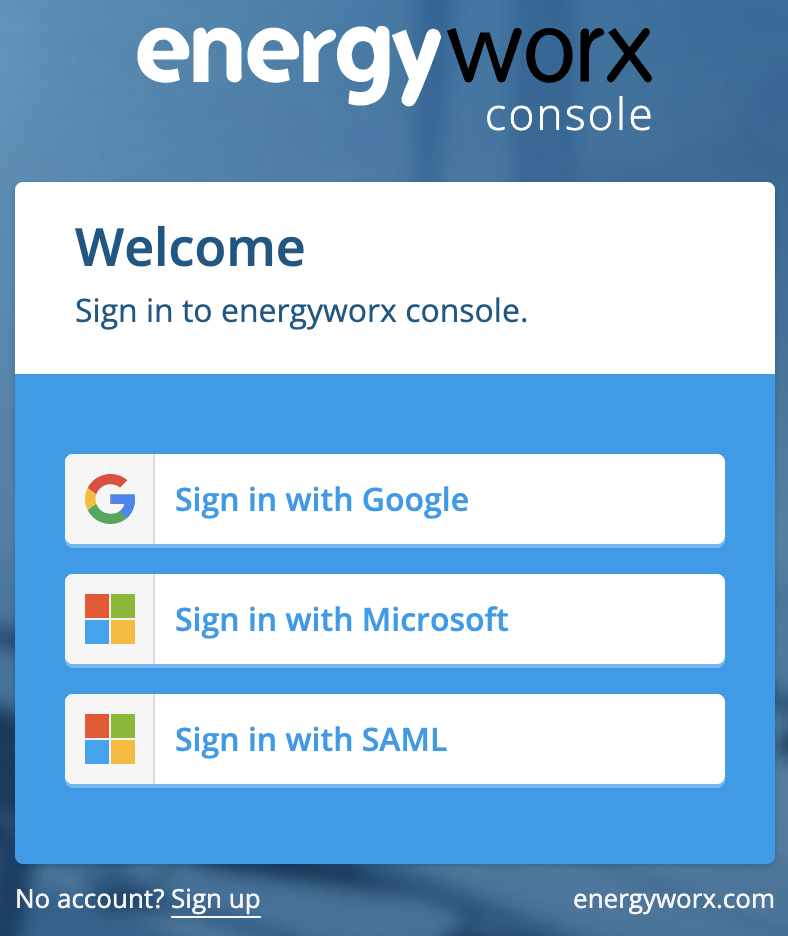
In order to log in with SAML the user can click on the Sign in with SAML login button and it will automatically redirect to their organization's identity provider (Google Workspace, Microsoft Entra, Okta, etc.) for authentication. If not logged in already it will ask for the corresponding credentials for the user's account. Once authenticated, the identity provider posts the assertion back to Energyworx, which validates it, establishes a session, and redirects the user to the Energyworx homepage (dashboard page).
Automatic whitelisting
The allowed_email_domains billing-account property described below no longer grants anyone
access: it registered a verified user on every namespace of the billing account at their first
sign-in, and access is now a grant per user per namespace.
Its replacement is an access rule (IAM → Users → Access rules) per namespace, matching the same email domain and naming the groups its users should get. See How to add a new user.
SAML authentication allows for automatic whitelisting of users to the namespaces belonging to a certain billing account. In order to configure this mechanism the administrator has the ability to add email domains to a Billing Account property. This can be found in Administrator-> Billing Accounts and then after clicking on the details button of the corresponding Billing Account the property named allowed_email_domains allows to configure the email domains.

Permissions Group mapping
The iam_group_mapping namespace property that used to drive this is gone: it stopped
being evaluated at sign-in in 26.09 and the platform no longer reads or stores it at all.
Access is held in a grant per user per namespace (see
How to Whitelist and Assign Permissions).
An access rule matching an identity-provider claim does the same job: name the claim your
IdP sends (for example groups, or the full claim URI beside it — either works), the value it
carries, and the platform groups to grant. Everyone whose assertion carries that claim value is
granted those groups on their next sign-in, and loses them when the claim stops being asserted.
A rule matching an email domain works the same way for "everyone at this company".
Two things are worth knowing before you rely on a claim rule:
- The claim has to reach us in the sign-in. A SAML or OIDC sign-in carries one; an API token minted from client credentials does not, and minting one takes the claim-granted access away until the user next signs in through the identity provider. Grant access that must not come and go this way to the user directly instead.
- If Microsoft Entra reports the user is in too many groups to fit in the token, it leaves the group claim out, and a rule reading it grants nothing. Configure the app registration to emit only the groups assigned to the application.
The property itself is left in place so nothing that reads it breaks; it simply has no effect, and can be removed once the rules replacing it are in.
Example access rules
An access rule needs three things: the claim name as your identity provider sends it, the value to match, and the platform groups to grant on a namespace. Values are matched without regard to case, and a claim carrying several values matches if any one of them does.
Microsoft Entra ID (Azure AD) — app roles
The tidiest option, and the one to prefer.
In Entra: Microsoft Entra admin center → Enterprise applications → your EWX app → Single sign-on → Attributes & Claims. On the app registration, define an app role, for example:
| App role field | Value |
|---|---|
| Display name | EWX Operators |
| Value | EWX.Operators |
| Allowed member types | Users/Groups |
Assign users or a directory group to that role under Users and groups. Entra then sends this in the assertion:
<Attribute Name="http://schemas.microsoft.com/ws/2008/06/identity/claims/role">
  <AttributeValue>EWX.Operators</AttributeValue>
</Attribute>
The access rule:
| Field | Value |
|---|---|
| Match type | Identity provider claim |
| Claim name | http://schemas.microsoft.com/ws/2008/06/identity/claims/role |
| Claim value | EWX.Operators |
| Groups | the platform groups those users should have |
App roles are worth the setup over group membership: the value is a name you chose, it does not change when somebody renames a directory group, and only the roles you defined are ever sent — so the token never runs out of room (see below).
Microsoft Entra ID (Azure AD) — group membership
If you would rather drive it from directory groups, configure the group claim under Attributes & Claims → Add a group claim, and choose "Groups assigned to the application".
What Entra sends by default is the group's object ID, not its name:
<Attribute Name="http://schemas.microsoft.com/ws/2008/06/identity/claims/groups">
  <AttributeValue>8ab5f1cd-3c92-4f1e-9d0b-5a7c2e6f4b10</AttributeValue>
  <AttributeValue>c74e0b21-9f38-4a6d-b1c5-3e8a7d2f9014</AttributeValue>
</Attribute>
The access rule, matching the first of those groups:
| Field | Value |
|---|---|
| Match type | Identity provider claim |
| Claim name | http://schemas.microsoft.com/ws/2008/06/identity/claims/groups |
| Claim value | 8ab5f1cd-3c92-4f1e-9d0b-5a7c2e6f4b10 |
| Groups | the platform groups those users should have |
The user is in two groups and the rule names one; a claim carrying several values matches if any one of them does, so this grants.
Two things to know before choosing this over app roles:
- The value is a GUID, not a name. Entra can be configured to send names instead — under the
group claim's Source attribute,
sAMAccountNamefor groups synchronised from on-premises Active Directory, or cloud-only group display names where that option is available to you. If you have not changed it, write the rule against the GUID. Copy it from Entra admin center → Groups → your group → Object Id, or read it out of an assertion as below. - Keep the claim scoped to "Groups assigned to the application" rather than all groups. When
a user belongs to more groups than fit in the token, Entra drops the claim entirely and sends
a
_claim_namespointer instead. A rule reading it then matches nothing, and those users quietly lose the access it gave them. The gateway logs a warning naming the omitted claim when this happens.
AD FS
AD FS sends the same claim types as Entra. A role claim, issued from an AD group membership by a claim rule on the relying party trust, matches the same way:
| Field | Value |
|---|---|
| Claim name | http://schemas.microsoft.com/ws/2008/06/identity/claims/role |
| Claim value | the role name your claim rule issues, e.g. EWX-Operators |
| Groups | the platform groups those users should have |
Google Workspace
In Workspace: Admin console → Apps → Web and mobile apps → your EWX app → SAML attribute
mapping → Group membership (optional). Pick the Google groups whose membership should be sent,
and give the App attribute a name — Groups is the usual choice. Save.
Workspace then sends the group's display name, not its email address:
<saml2:Attribute Name="Groups">
  <saml2:AttributeValue>Platform Operators</saml2:AttributeValue>
</saml2:Attribute>
The access rule:
| Field | Value |
|---|---|
| Match type | Identity provider claim |
| Claim name | Groups — whatever you typed in App attribute |
| Claim value | Platform Operators |
| Groups | the platform groups those users should have |
Only the groups you selected in the mapping are ever sent, so a user in a group you did not list matches nothing. Add the group to the mapping before writing a rule for it.
The claim name is matched without regard to case, so a rule written for groups still matches an
attribute named Groups. The value is matched the same way. Spaces are part of the value —
Platform Operators is not PlatformOperators.
Seeing what your identity provider actually sends
Either name works: the claim URI (http://schemas.microsoft.com/ws/2008/06/identity/claims/groups)
or the short friendly name beside it (groups), whichever your identity provider shows you. If a
rule grants nothing, the value is usually the reason — an object ID where a name was expected,
or the other way round. Rather than guess, read one assertion.
The claim names are in the platform log. Every SAML sign-in logs a SAML login completed line
listing the attributes the assertion carried:
SAML login completed  tenant=energyworx  user_email=someone@yourcompany.com
  asserted_claims=["http://schemas.microsoft.com/ws/2008/06/identity/claims/groups","email"]
If the attribute you configured is not in that list, the identity provider is not sending it and no rule will ever match it — fix that before looking any further.
The claim values are deliberately not logged: they are the user's group and role memberships, and a sign-in log is the wrong place to keep those. Read them from the assertion itself, which your own browser posts to the platform:
-
Open your browser's developer tools, Network tab, and switch on Preserve log — the sign-in ends in a redirect that would otherwise clear it.
-
Sign in through SAML as normal.
-
Find the
POSTto.../identity/saml/<tenant>/acs, open its Payload / form data, and copy the value of theSAMLResponsefield. It is base64. -
Decode it. Any base64 decoder will do; on a terminal:
pbpaste | base64 --decode | xmllint --format - -
Look for the
<AttributeStatement>block. Every<Attribute Name="...">is a claim name, and each<AttributeValue>inside it is a value a rule can match.
A browser extension such as SAML-tracer does steps 1–4 in one window if you prefer.
The assertion is signed for this service provider and contains the user's own identity — treat a copy of it as you would a password, and do not paste it anywhere public.