Market Adapter
Market adapters function as the first step of two steps for getting data into the Energyworx Platform. This is accomplished by reading the data of the file it is subjected to and creating an output that can be interpreted by the Platform in Python to achieve the ultimate goal of bringing data into the system.
The Market Adapter configuration allows the user to upload a Python code that will be executed in runtime to perform all the normalizing data processes. However, the platform also provides some generic Market Adapters that can be used to read more common file types, such as:
| file type | technical name |
|---|---|
| CSV | csv |
| Excel | excel |
| JSON/JSONP | json_market_adapter |
| XML | xml |
The configuration name of the Market Adapter should be unique, but you can use the above base Market Adapters in as many configurations as you may see fit.
Market Adapter configuration
Market Adapters are managed under [Smart Integration → Market Adapters]. The overview lists every adapter with its type and version, its Transformation Configuration and when it was last updated. Use the search field or the type tabs (CSV, JSON, XML, …) to narrow the list.
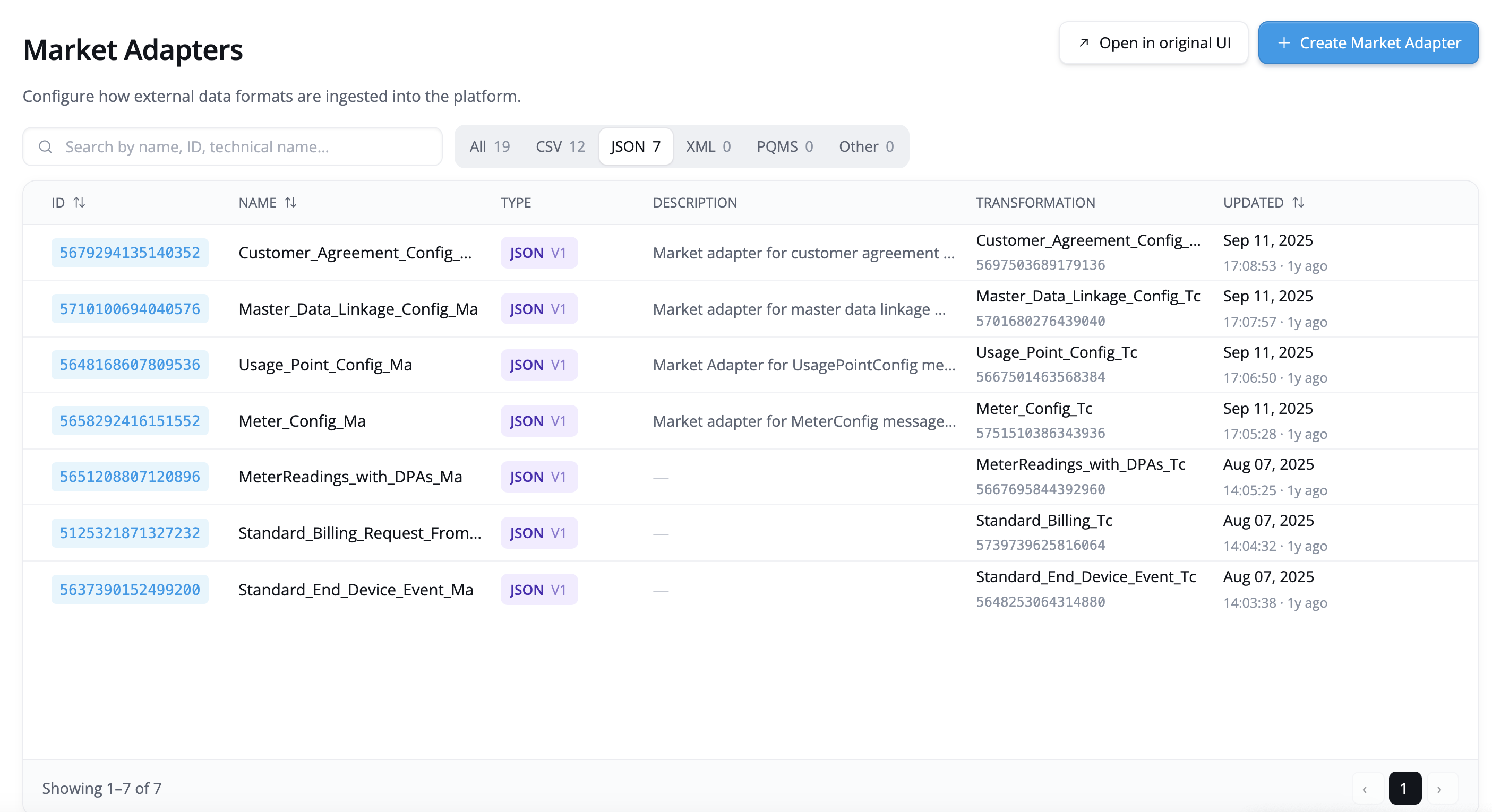
Create a Market Adapter
-
Click [Create Market Adapter].
-
Choose the type that matches your incoming files: CSV, JSON or XML. The type sets the technical name for you (
csv,json_market_adapterorxml), so there is no technical name to fill in.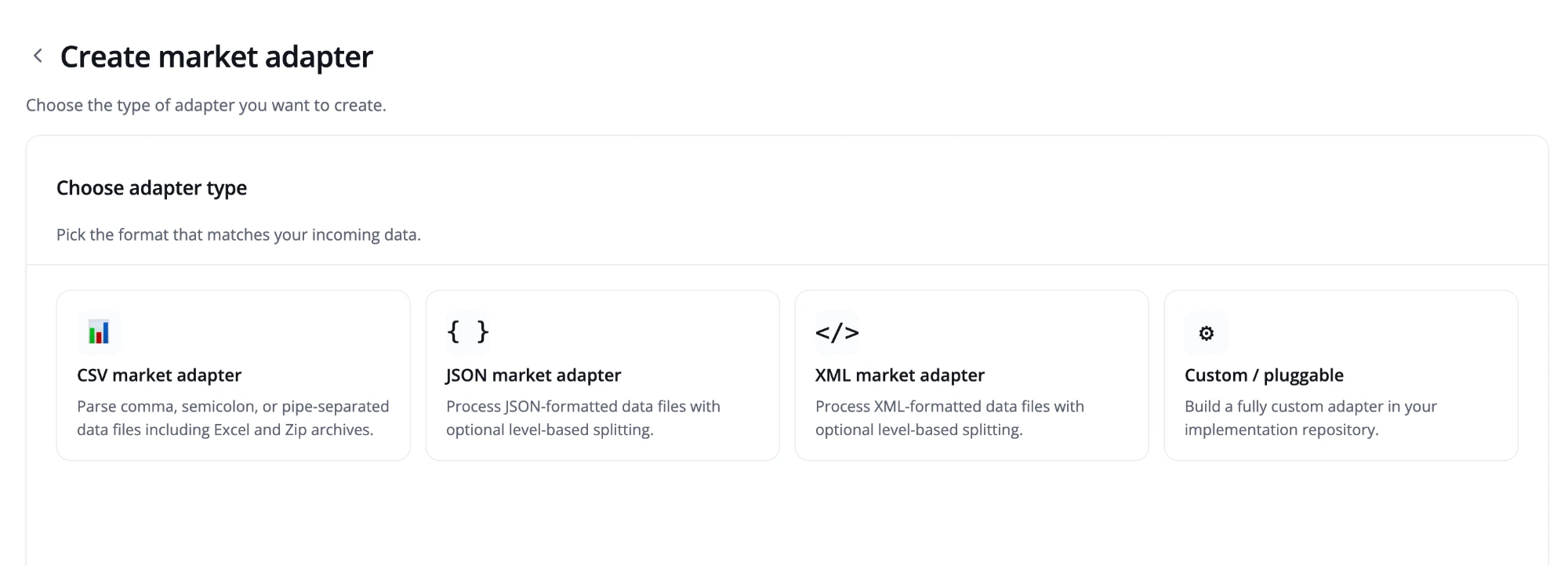
Custom / pluggable adapters are not created from this page. They are written in your implementation repository, so choosing this type only explains who to contact. See How to write a Market Adapter.
-
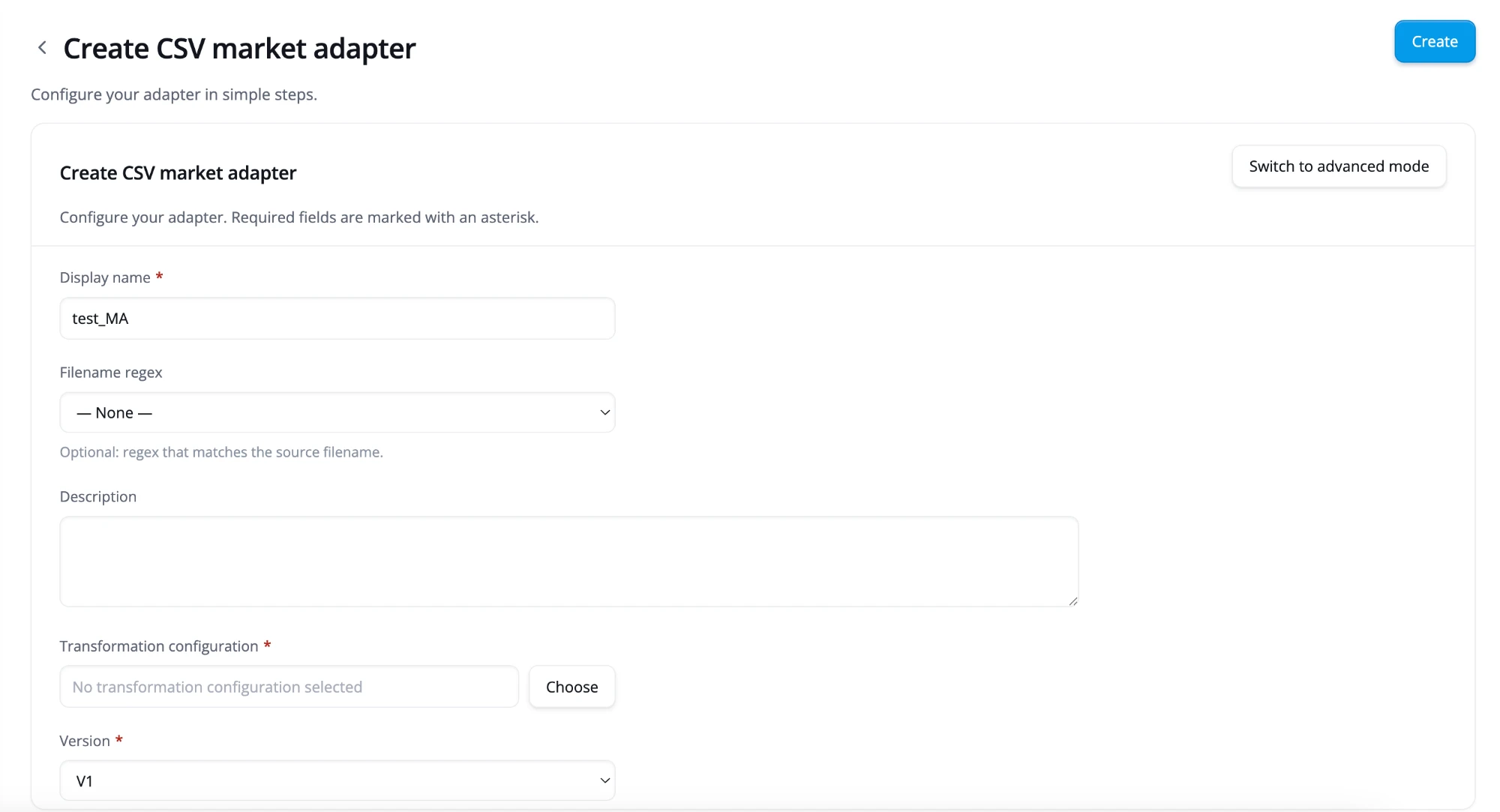
Fill in the adapter details:
- Display name (required).
- Filename regex (optional): pick the pattern for the file extension the adapter should
accept, for example
CSV File - ^.*.(csv|CSV)$. The list offers the extensions that fit the chosen type, plus Zip. - Description (optional).
- Transformation configuration (required): click [Choose], search for the configuration and select it.
- Version (CSV only, required):
V1(the default) orV2. JSON and XML adapters are alwaysV1. See Generic Market Adapter Properties for what each version does.
-
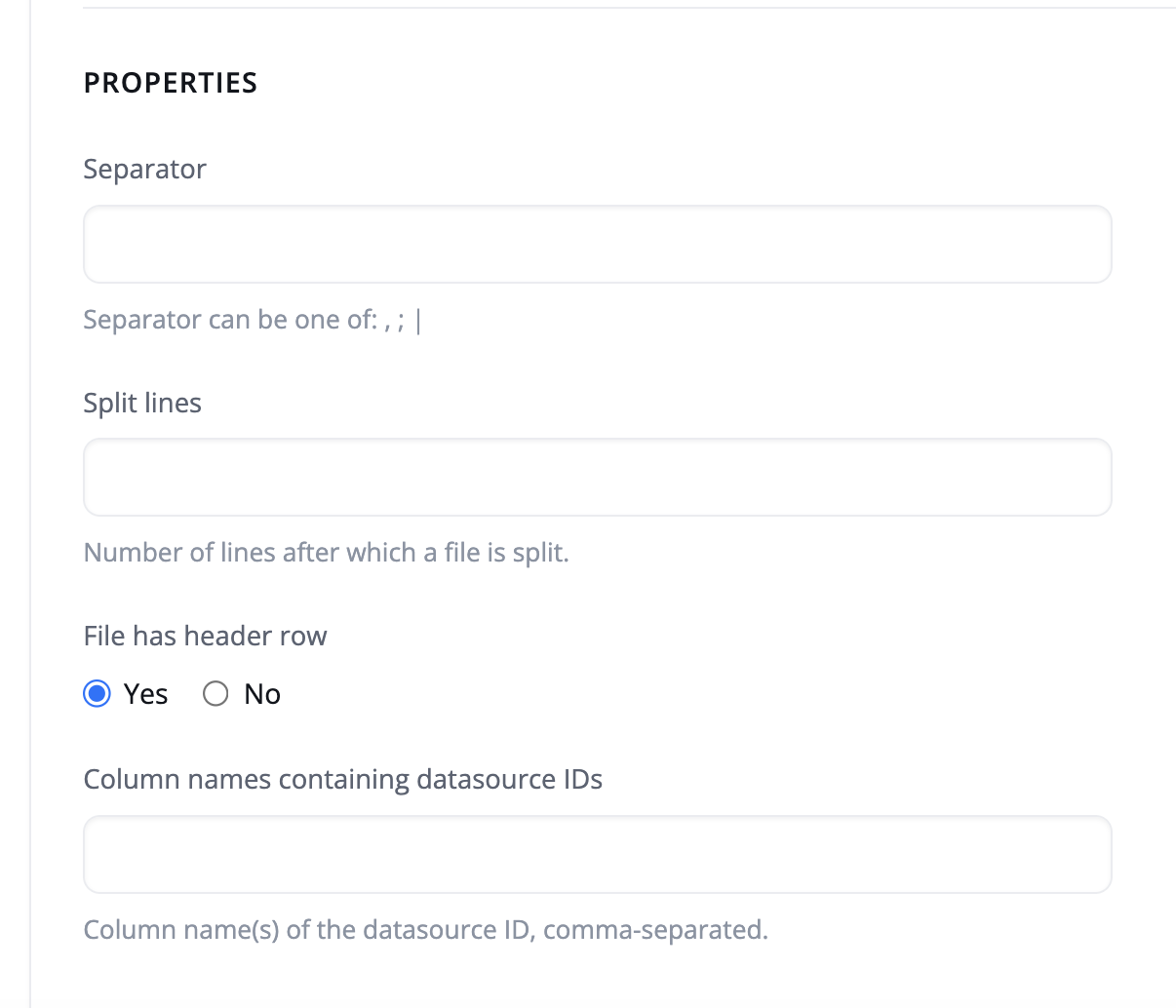
Fill in the properties. The form only shows the properties the chosen type supports:
- CSV: Separator, Split lines, File has header row, and the column names that contain the datasource IDs (or the column indices, when the file has no header row).
- JSON and XML: the process level to split the file on (
json_process_level).
-
Click [Create]. The platform gives the Market Adapter a unique ID.
Advanced mode. [Switch to advanced mode] replaces the property fields with a free-form
key/value list, so you can set properties the form does not show, such as the CSV V2
properties or those of a special adapter version. Most adapters do not need it. Once you add a
key the simple form does not know, you cannot switch back to simple mode.
Edit a Market Adapter
- In the overview, click the adapter's ID. You can also hover over the row and click the Edit icon, or click the View details icon and then [Edit] in the panel that opens.
- Change the fields you need. On this page you can also change the technical name and version, and add or remove properties with [Add property].
- Click [Save].
The same page has a [Versions] button that shows the adapter's change history, and a [Delete] button.
Copy a Market Adapter
Copying is useful when a new adapter differs only slightly from an existing one.
- Open the Market Adapter you want to copy, as described in the edit steps above.
- Click [Copy]. The create form opens with every field filled in, and the display name set to
Copy of <name>. If the original has properties the simple form does not know, the form opens in advanced mode. - Make your changes and click [Create].
Implementation
In addition to the provided basic Market Adapters customers can also implement their own Market Adapter in python code. You can see how to write code for Market Adapter in How to write a Market Adapter
Automated MA Assignment
The platform can automatically assign a Market Adapter (MA) to incoming files as soon as they land in cloud storage. This feature enables fully automated, hands-free data ingestion based on the file's payload type.
Configuration
Automated MA assignment is configured per namespace, by mapping each payload type to the Market Adapter that should ingest it.
- Go to [Smart Integration → File Management] and click [Payload Mapping] at the top right. The Payload Type Mapping panel opens and lists the current mappings.
- Under Add mapping, type the payload type, select the Market Adapter and click [Add Mapping]. Repeat for every payload type you want to map. To remove a mapping, click the × next to it.
- Click [Save]. Nothing is changed until you save.
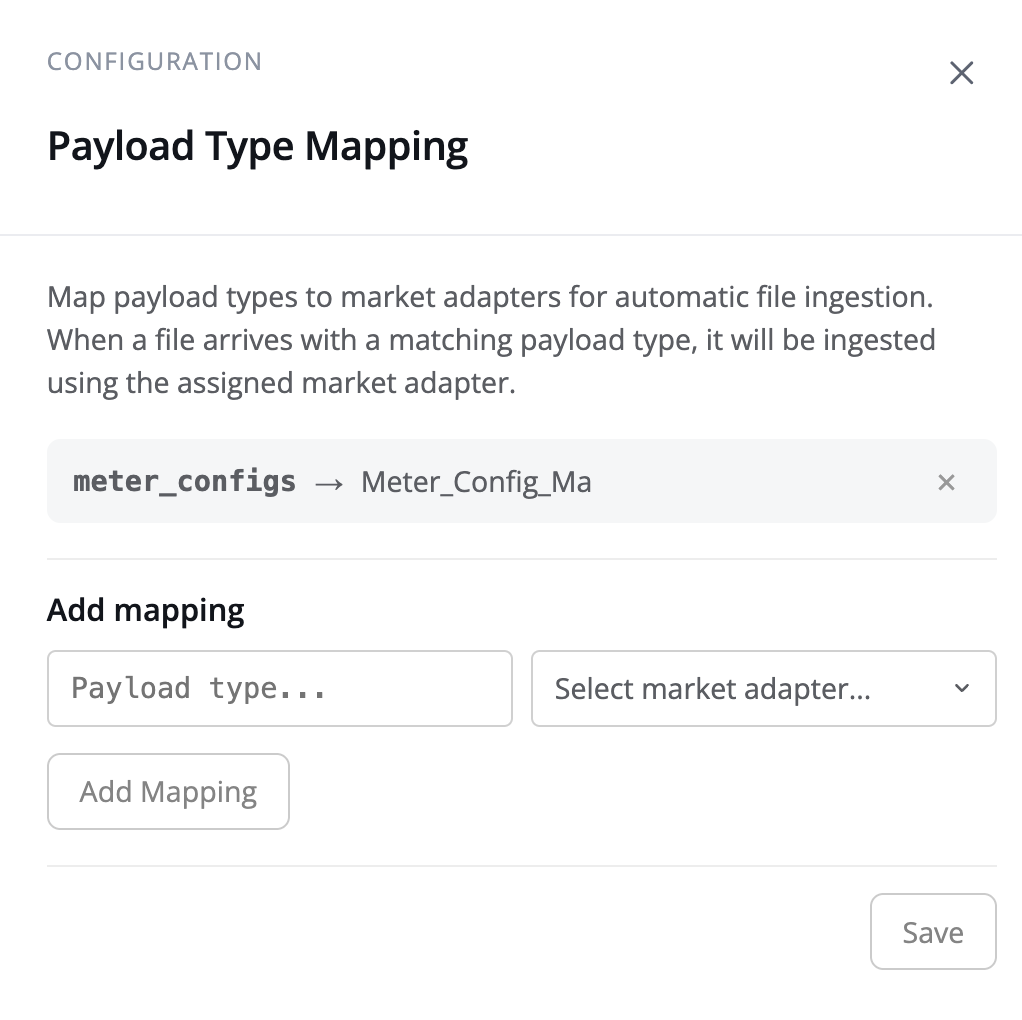
The [Payload Mapping] button is available from version 26.05 onwards, and is only shown to
users with the update permission on admin.
The panel stores the mappings in the market_adapters namespace property, so you can also set
them through the API or ewx-cli. The property maps each payload type to a Market Adapter id:
{
  "meter_configs": "5658292416151552",
  "meter_reads_csv": "5136851304185856"
}
See Namespace Properties for how to set properties outside the console.
Generic Market Adapter Properties
Each generic Market Adapter accepts a set of properties that can be configured in the Properties section of the Market Adapter configuration. The available properties depend on the technical name and version selected. The create form shows the most common ones; use advanced mode to set any of the others.
CSV (csv)
Version V1
| Property | Type | Default | Description |
|---|---|---|---|
split_lines | int | 10000000 | Maximum number of data rows per chunk. Only used when no datasource splitting is configured. |
separator | str | auto-detected | Column delimiter character (e.g. ,, ;, \t, |, ~). Required when datasource_id_columns or datasource_id_columns_indices is set. |
datasource_id_columns | str | — | Comma-separated column name(s) that together form the datasource ID. Use when the file has headers and contains data for multiple datasources. Cannot be combined with datasource_id_columns_indices. |
datasource_id_columns_indices | str | — | Comma-separated zero-based column indices that form the datasource ID. Use when the file has no headers. Cannot be combined with datasource_id_columns. |
has_header | True/False | True | Whether the file contains a header row. Must be False when using datasource_id_columns_indices. |
index_columns | str | — | Comma-separated column names to use as index columns. |
channels_column | str | — | Name of the column containing channel names in a long-format CSV (one row per channel reading). Requires datasource_id_columns. |
Version V2
V2 reads the file via pandas.read_csv and supports transformation steps. All properties are passed directly to pandas.
| Property | Type | Default | Description |
|---|---|---|---|
filename_regex | str | — | Regular expression the incoming filename must match. Files that do not match are rejected with an error. |
steps | str | — | Comma-separated list of post-read transformation steps to apply to the DataFrame. Supported values: melt, groupby, transpose. |
sep | str | , | Column separator. |
delimiter | str | — | Alias for sep. |
header | int or str | infer | Row number(s) to use as column names. |
names | str | — | Comma-separated list of column names to assign (must match the number of columns in the file). |
index_col | str | — | Comma-separated column index/name(s) to use as the row index. |
usecols | str | — | Subset of columns to read. |
dtype | str | — | Data type for all or specific columns. |
engine | str | — | Parser engine (c, python). |
true_values | str | — | Comma-separated values to interpret as True. |
false_values | str | — | Comma-separated values to interpret as False. |
skipinitialspace | True/False | False | Skip whitespace after the delimiter. |
skiprows | str | — | Comma-separated row indices to skip. |
skipfooter | int | 0 | Number of rows to skip at the end of the file. |
nrows | int | — | Maximum number of rows to read. |
na_values | str | — | Comma-separated additional strings to treat as NaN. |
keep_default_na | True/False | True | Whether to include the default set of NaN values. |
na_filter | True/False | True | Detect missing values. Disable for a small performance gain on files with no missing data. |
skip_blank_lines | True/False | True | Skip blank lines rather than interpreting them as NaN rows. |
parse_dates | str | — | Comma-separated column names/indices to parse as dates. |
infer_datetime_format | True/False | False | Infer the datetime format for faster parsing. |
dayfirst | True/False | False | Interpret dates as day-first (e.g. 01/02/2020 → February 1). |
keep_date_col | True/False | False | Keep the original date column after parsing. |
compression | str | infer | Decompression format: infer, gzip, bz2, zip, xz. |
thousands | str | — | Thousands separator character. |
decimal | str | . | Decimal separator character. |
lineterminator | str | — | Line break character. |
quotechar | str | " | Character used to denote the start and end of a quoted item. |
quoting | int | 0 | Quoting mode (maps to Python csv.QUOTE_* constants). |
doublequote | True/False | True | Interpret two consecutive quote characters as a single quote. |
escapechar | str | — | Character used to escape the delimiter. |
comment | str | — | Character that marks the rest of a line as a comment. |
encoding | str | — | File encoding (e.g. utf-8, latin-1). |
dialect | str | — | CSV dialect to use. |
delim_whitespace | True/False | False | Use whitespace as the delimiter. |
low_memory | True/False | True | Process the file in chunks to reduce memory usage. |
memory_map | True/False | False | Map the file directly into memory. |
float_precision | str | — | Floating-point converter to use (high, legacy, round_trip). |
Excel (excel)
Accepts an OOXML workbook — .xlsx, .xlsm, .xltx or .xltm — either uploaded
directly or wrapped in a .zip. Legacy .xls and OpenDocument .ods files are not
supported: they need a different parsing engine than the one the platform installs.
Pick the version by how the sheet is laid out:
- XLSX splits the sheet into csv chunks and can group those chunks per datasource,
so use it for files holding data for many datasources. Header labels are ASCII-folded
when the chunk is built (
VerbrüikbecomesVerbruik), and non-text header cells are stringified — refer to the folded name in the transformation configuration. - V1 hands the sheet to
pandas.read_exceland can reshape it afterwards, so use it for wide or pivoted sheets that need amelt/transposebefore transform. It does not split per datasource.
Version XLSX
| Property | Type | Default | Description |
|---|---|---|---|
split_lines | int | 10000000 | Maximum number of data rows per chunk. Only used when no datasource splitting is configured. |
sheet_range | str | (all sheets) | Range of sheet indices to process, e.g. 0-12, 1-, -5. Leave empty to process all sheets. |
header | int | 1 | 1-based row number of the header. All rows above it are ignored. |
datasource_id_columns | str | — | Comma-separated column name(s) that form the datasource ID. Use when the file contains data for multiple datasources. |
index_columns | str | — | Comma-separated column names to use as index columns. |
channels_column | str | — | Column containing channel names in a long-format file. Requires datasource_id_columns. |
Version V1
V1 reads the file via pandas.read_excel and supports transformation steps.
| Property | Type | Default | Description |
|---|---|---|---|
steps | str | — | Comma-separated list of post-read transformation steps: melt, groupby, transpose. |
sheet_name | int or str | 0 | Sheet index or name to read. Comma-separated for multiple sheets. Leave unset to read every sheet. |
header | int | 0 | Row number(s) to use as column names (0-indexed). |
names | str | — | Comma-separated list of column names to assign. |
index_col | str | — | Comma-separated column index/name(s) to use as the row index. |
dtype | str | — | Data type for all or specific columns. |
engine | str | auto-detected | Excel parsing engine. Only openpyxl is installed — xlrd (.xls) and odf (.ods) are not available. |
true_values | str | — | Comma-separated values to interpret as True. |
false_values | str | — | Comma-separated values to interpret as False. |
skiprows | str | — | Comma-separated row indices to skip. |
nrows | int | — | Maximum number of rows to read. |
na_values | str | — | Comma-separated additional strings to treat as NaN. |
keep_default_na | True/False | True | Whether to include the default set of NaN values. |
verbose | True/False | False | Log verbose output. |
parse_dates | str | — | Comma-separated column indices to parse as dates. |
thousands | str | — | Thousands separator character. |
comment | str | — | Character that marks the rest of a line as a comment. |
skipfooter | int | 0 | Number of rows to skip at the end of the sheet. |
JSON (json_market_adapter)
Version V1
| Property | Type | Default | Description |
|---|---|---|---|
json_process_level | str | — | Key path within the JSON structure on which to split the file. The value at that key must be a list — each list item becomes a separate element passed to the transform step. If not set, the entire JSON object is passed through as a single element. |
Note: JSON keys in the ingested file must not contain the strings
\_,\:, or\/as these are used internally by the adapter during processing.