Timeslice Groups
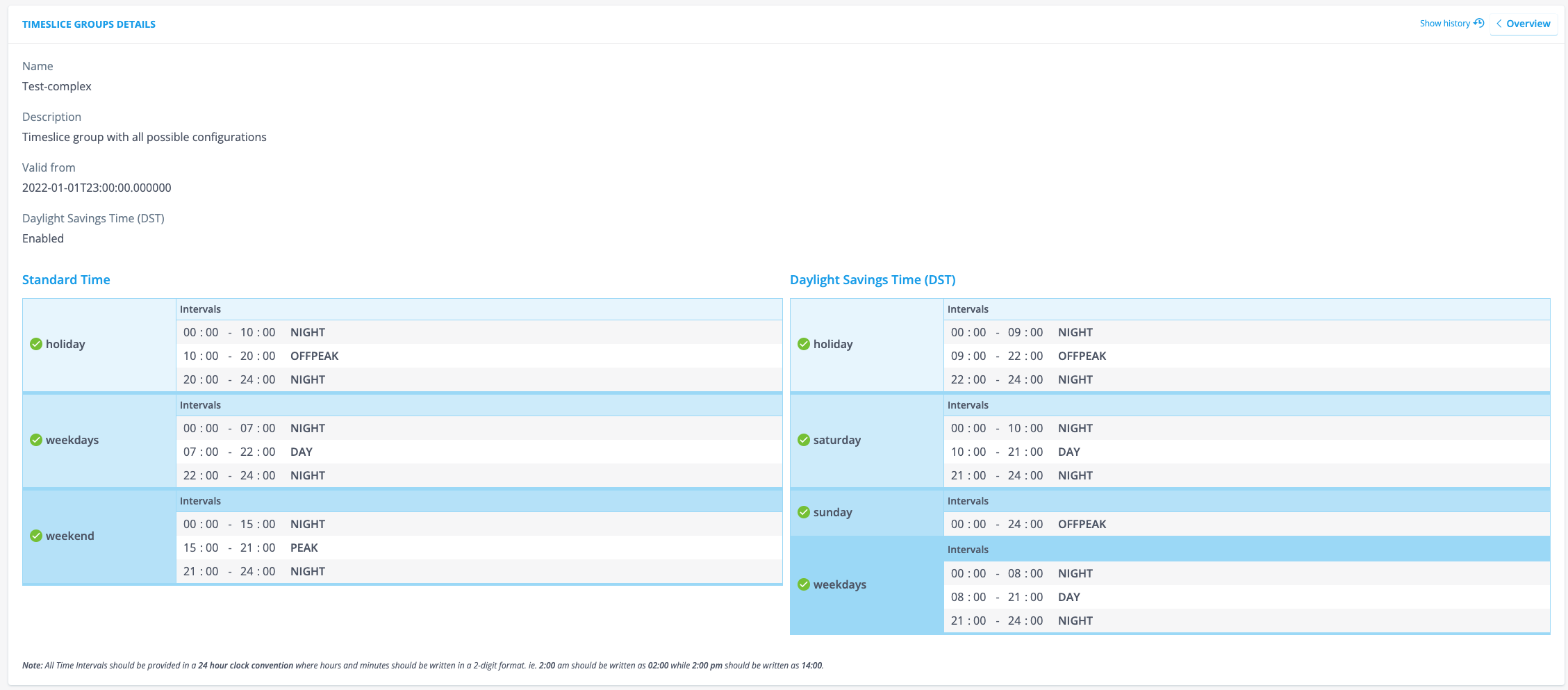
This feature is designed to easily align part of your output to different energy prices. Basically, the Timeslice Groups enable you to set up intervals. Each interval corresponds with a value that determines the rate for that specific interval. This allows you to register different prices for different moments during the week. For instance, a regular pricing during the day, and a lower pricing during the night. A fully set up configuration looks as follows.
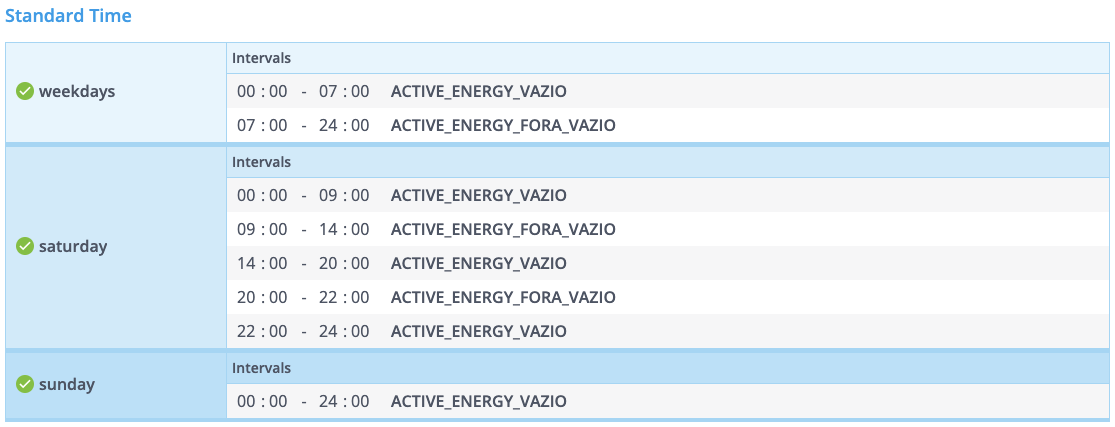
Timeslice Periods Supported:
- DST
- Daily
- Week days
- Saturday
- Sunday
- Holidays
- Weekend
How to create Timeslice Groups
The console provides a total of seven templates, to make sure you can set up your Timeslice Groups any way you like. Go through the following steps to set up your Timeslice Groups:
- Go to [Smart Integration -> Timeslice Groups].
- Fill in the Name and Description fields (both are mandatory).
- The Daylight Saving Time toggle is set to No by default. Click Yes when you want to apply Daylight Saving Time to your Timeslice Groups.
- Select one of the available templates. When you set Daylight Saving Time to Yes, you need to select a template for both the Standard Time (Winter Time) as well as the Daylight Saving Time (Summer Time).
- Fill in the Intervals.
- Provide values for each Interval.
- Click [Save] when you’re done.
Notes:
- All Intervals need to be provided in the 24 hour clock convention.
- The Values that need to be provided are Channels used for output.
Timeslices groups can also be retrieved in rules. For more information about that check: Rule framework functions